
=== Classic Editor === Contributors: wordpressdotorg, azaozz, melchoyce, chanthaboune, alexislloyd, pento, youknowriad, desrosj, luciano-croce, ironprogrammer Tags: classic editor, block editor, editor, gutenberg Requires at least: 4.9 Tested up to: 6.7 Stable tag: 1.6.7 Requires PHP: 5.2.4 License: GPLv2 or later License URI: http://www.gnu.org/licenses/gpl-2.0.html Enables the previous "classic" editor and the old-style Edit Post screen with TinyMCE, Meta Boxes, etc. Supports all plugins that extend this screen. == Description == Classic Editor is an official plugin maintained by the WordPress team that restores the previous ("classic") WordPress editor and the "Edit Post" screen. It makes it possible to use plugins that extend that screen, add old-style meta boxes, or otherwise depend on the previous editor. Classic Editor is an official WordPress plugin, and will be fully supported and maintained until 2024, or as long as is necessary. At a glance, this plugin adds the following: * Administrators can select the default editor for all users. * Administrators can allow users to change their default editor. * When allowed, the users can choose which editor to use for each post. * Each post opens in the last editor used regardless of who edited it last. This is important for maintaining a consistent experience when editing content. In addition, the Classic Editor plugin includes several filters that let other plugins control the settings, and the editor choice per post and per post type. By default, this plugin hides all functionality available in the new block editor ("Gutenberg"). == Changelog == = 1.6.7 = * Fixed loading of script translations when post.js is replaced in WordPress 6.7.1. = 1.6.6 = * Added fix for selecting/deselecting multiple unwanted categories in WordPress 6.7.1 when clicking on a category checkbox on the old Edit Post screen. = 1.6.5 = * Added fix for Safari 18 negative horizontal margin on floats. = 1.6.4 = * Added support for administrators to choose the default editor for other users. = 1.6.3 = * Added some WPCS fixes, props NicktheGeek on GitHub. * Updated "Tested up to" in the readme and removed it from classic-editor.php. This should fix false positive errors in security plugins in the future. = 1.6.2 = * Fixed bug that was preventing saving of the last used editor. = 1.6.1 = * Fixed a warning on the block editor based widgets screen. * Fixed use of a deprecated filter. = 1.6 = * Updated for WordPress 5.5. * Fixed minor issues with calling deprecated functions, needlessly registering uninstall hook, and capitalization of some strings. = 1.5 = * Updated for WordPress 5.2 and Gutenberg 5.3. * Enhanced and fixed the "open posts in the last editor used to edit them" logic. * Fixed adding post state so it can easily be accessed from other plugins. = 1.4 = * On network installations removed the restriction for only network activation. * Added support for network administrators to choose the default network-wide editor. * Fixed the settings link in the warning on network About screen. * Properly added the "Switch to classic editor" menu item to the block editor menu. = 1.3 = * Fixed removal of the "Try Gutenberg" dashboard widget. * Fixed condition for displaying of the after upgrade notice on the "What's New" screen. Shown when the classic editor is selected and users cannot switch editors. = 1.2 = * Fixed switching editors from the Add New (post) screen before a draft post is saved. * Fixed typo that was appending the edit URL to the `classic-editor` query var. * Changed detecting of WordPress 5.0 to not use version check. Fixes a bug when testing 5.1-alpha. * Changed the default value of the option to allow users to switch editors to false. * Added disabling of the Gutenberg plugin and lowered the required WordPress version to 4.9. * Added `classic_editor_network_default_settings` filter. = 1.1 = Fixed a bug where it may attempt to load the block editor for post types that do not support editor when users are allowed to switch editors. = 1.0 = * Updated for WordPress 5.0. * Changed all "Gutenberg" names/references to "block editor". * Refreshed the settings UI. * Removed disabling of the Gutenberg plugin. This was added for testing in WordPress 4.9. Users who want to continue following the development of Gutenberg in WordPress 5.0 and beyond will not need another plugin to disable it. * Added support for per-user settings of default editor. * Added support for admins to set the default editor for the site. * Added support for admins to allow users to change their default editor. * Added support for network admins to prevent site admins from changing the default settings. * Added support to store the last editor used for each post and open it next time. Enabled when users can choose default editor. * Added "post editor state" in the listing of posts on the Posts screen. Shows the editor that will be opened for the post. Enabled when users can choose default editor. * Added `classic_editor_enabled_editors_for_post` and `classic_editor_enabled_editors_for_post_type` filters. Can be used by other plugins to control or override the editor used for a particular post of post type. * Added `classic_editor_plugin_settings` filter. Can be used by other plugins to override the settings and disable the settings UI. = 0.5 = * Updated for Gutenberg 4.1 and WordPress 5.0-beta1. * Removed some functionality that now exists in Gutenberg. * Fixed redirecting back to the classic editor after looking at post revisions. = 0.4 = * Fixed removing of the "Try Gutenberg" call-out when the Gutenberg plugin is not activated. * Fixed to always show the settings and the settings link in the plugins list table. * Updated the readme text. = 0.3 = * Updated the option from a checkbox to couple of radio buttons, seems clearer. Thanks to @designsimply for the label text suggestions. * Some general updates and cleanup. = 0.2 = * Update for Gutenberg 1.9. * Remove warning and automatic deactivation when Gutenberg is not active. = 0.1 = Initial release. == Frequently Asked Questions == = Default settings = When activated and when using a classic (non-block) theme, this plugin will restore the previous ("classic") WordPress editor and hide the new block editor ("Gutenberg"). These settings can be changed at the Settings => Writing screen. = Default settings for network installation = There are two options: * When network-activated and when using a classic (non-block) theme, this plugin will set the classic editor as default and prevent site administrators and users from changing editors. The settings can be changed and default network-wide editor can be selected on the Network Settings screen. * When not network-activated each site administrator will be able to activate the plugin and choose options for their users. = Cannot find the "Switch to classic editor" link = It is in the main block editor menu, see this [screenshot](https://ps.w.org/classic-editor/assets/screenshot-7.png?rev=2023480). = Does this work with full site editing and block themes? = No, as block themes rely on blocks. [See Block themes article](https://wordpress.org/support/article/block-themes/) for more information. == Screenshots == 1. Admin settings on the Settings -> Writing screen. 2. User settings on the Profile screen. Visible when the users are allowed to switch editors. 3. "Action links" to choose alternative editor. Visible when the users are allowed to switch editors. 4. Link to switch to the block editor while editing a post in the classic editor. Visible when the users are allowed to switch editors. 5. Link to switch to the classic editor while editing a post in the block editor. Visible when the users are allowed to switch editors. 6. Network settings to select the default editor for the network and allow site admins to change it. 7. The "Switch to classic editor" link. Payment Portal WorkFlow | techmatically

WorkFlow Payment Approval System

Our cutting-edge Workflow Payment Approval System offers a seamless solution to boost sales performance and streamline operations for telecommunications companies, spanning direct, indirect, and online sales channels. This comprehensive system includes features such as automated inventory management, order fulfillment, and swift last-mile delivery for physical products, all integrated within a cohesive sales distribution and dealer management platform. Discover the future of streamlined payment approval and operational excellence.

Efficient Payment Approval System

Tired of complex payment approvals? Our system offers a user-friendly payment go-through form, with custom designations and approval limits. Powered by AI, it provides a consolidated view of pending payments, streamlining the approval process for greater efficiency. Say hello to a simpler and faster way to authorize payments.
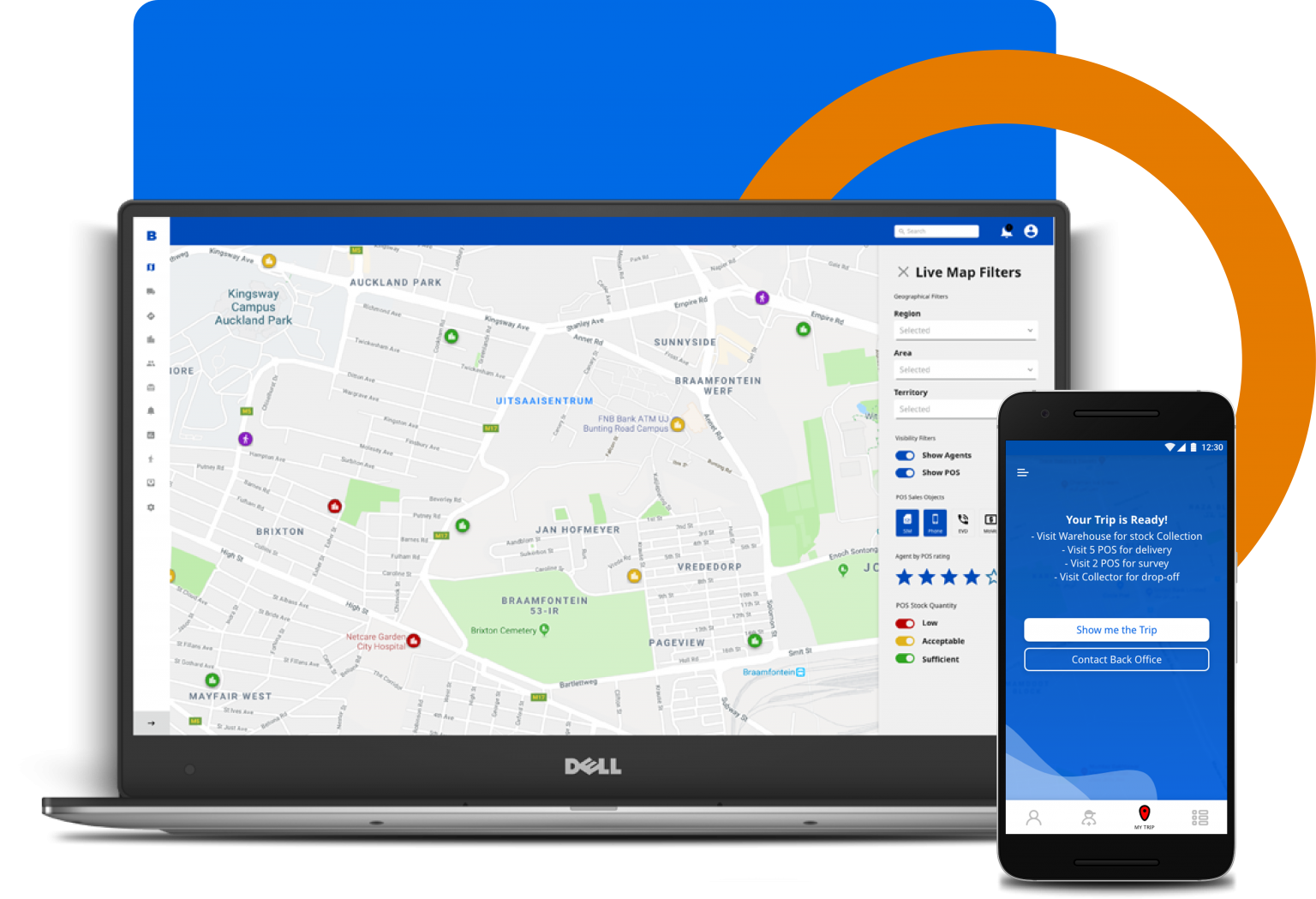
A Payment Portal with Approval Mechanism and Amount Limit, along with Designation-wise Purchase Order, Purchase Request, and Payment Request, serves as a robust tool for managing financial transactions in an organization. Here’s an explanation of how it works.

Purchase Request (PR):

Employees submit Purchase Requests when they need to make a purchase. These requests include details of the items or services required.

Designation-wise Approval:

Based on the organizational hierarchy, the Purchase Request goes through a series of approvals. Each designation (e.g., manager, department head, or finance officer) can approve or reject the request.

Amount Limit Control:

The system checks the amount requested against predefined limits for each designation. If the request exceeds the limit, it’s automatically escalated to the next higher authority for approval.

Purchase Order (PO) Creation:

Once approved, a Purchase Order is generated. This is a formal document that specifies the details of the purchase, including quantities, prices, and supplier information.

Supplier Selection:

The system may have a built-in supplier database or allow users to select suppliers. This ensures consistency and transparency in supplier selection.

Purchase Order Approval:

The Purchase Order follows a similar approval process, and any discrepancies can be addressed before final approval.

Payment Request:

After goods or services are received, the Payment Request is generated. This includes the approved Purchase Order and the invoice from the supplier.

Payment Approval:

The Payment Request goes through an approval process, similar to the Purchase Request and Purchase Order. It’s reviewed by designated personnel to ensure accuracy and compliance.

Amount Limit for Payments:

Like the Purchase Requests and Purchase Orders, the Payment Request is also subject to amount limits. If the payment exceeds the limit, it requires higher-level approval.

Payment Processing:

Once the Payment Request is approved, the system facilitates payment to the supplier. This can be through various payment methods, such as checks, electronic transfers, or credit card payments.

Reporting and Audit Trail:

The system maintains a comprehensive audit trail, which records all actions related to Purchase Requests, Purchase Orders, and Payment Requests. This provides transparency and accountability.

Notifications and Alerts:

Automated notifications and alerts keep stakeholders informed about the status of their requests. These alerts can be sent via email or within the portal.

Data Security and Compliance:

Data security and compliance measures are in place to protect sensitive financial information and ensure that the system adheres to relevant regulations.

User-Friendly Interface:

The portal provides an intuitive interface for employees to submit requests and track their progress.

This detailed workflow illustrates the integration of inventory distribution with e-commerce, from inventory management and order processing to customer engagement and optimization. Each step is critical to ensuring a seamless and efficient process.

You may also be interested in

Reach your full potential by letting us simplify and connect your supply chain from end to end.

Name Goes Here

Name Goes Here

Position

Your content goes here. Edit or remove this text inline or in the module Content settings. You can also style every aspect of this content in the module Design settings and even apply custom CSS to this text in the module Advanced settings.

Name Goes Here

Name Goes Here

Position

Your content goes here. Edit or remove this text inline or in the module Content settings. You can also style every aspect of this content in the module Design settings and even apply custom CSS to this text in the module Advanced settings.

Name Goes Here

Name Goes Here

Position

Your content goes here. Edit or remove this text inline or in the module Content settings. You can also style every aspect of this content in the module Design settings and even apply custom CSS to this text in the module Advanced settings.